
Updated September 5, 2026
Disclosure: As an Amazon Associate, I earn from qualifying purchases. This comes at no extra cost to you and helps keep this site running.
I want to clear up a problem that a lot of owners blame on the car when their Tesla USB drive keeps failing. You go to save a Sentry event and the clip is not there, or the car tells you the drive “isn’t formatted” for the third time in a month. I have run Dashcam and Sentry Mode on multiple Teslas, and a flash drive out of the junk drawer is the wrong tool for this job, because the car writes to it around the clock. Once you use the right kind of drive, the problem goes away. Below is what is going wrong and the drives I trust to keep recording.
The Sideswipe Sentry Never Recorded
For a month of writing this site, “your drive will fail silently” was something I knew was true but hadn’t lived. Then my Model 3 got sideswiped while it was parked. Creased fender, scuffed headlight — and Sentry Mode was armed the whole time.
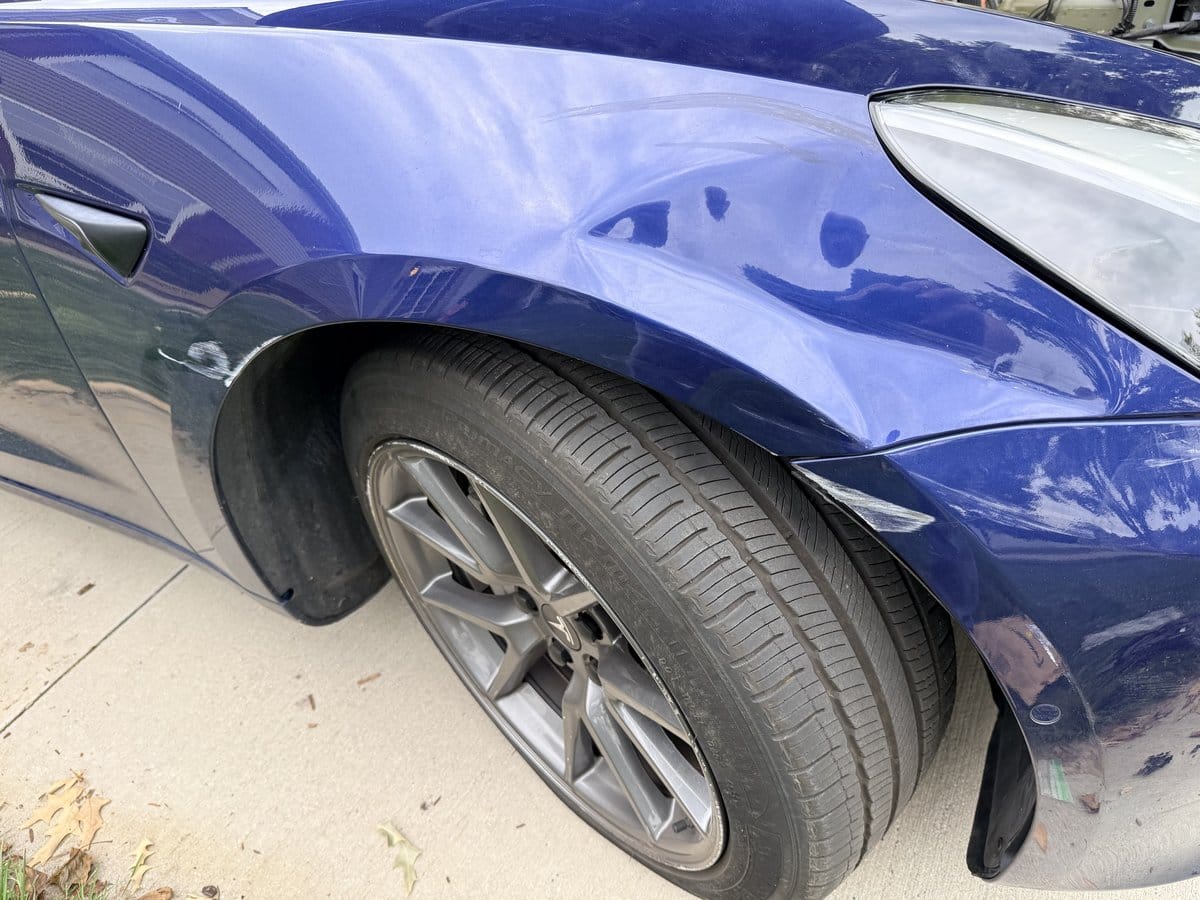
The fender after the sideswipe. Sentry was armed — the footage doesn’t exist.
When I went to pull the footage, there was nothing to pull. The car told me why. In Service Mode, Dashcam and Sentry Mode both showed the same alert: UI_a111_DashcamUsbDriveNotSuperSpeed. In plain English: the storage media was too slow, and the car had quietly stopped trusting it. (What TeslaCam can and can’t capture even when the drive is fine, with my own night frames, is in our best dash cam for EVs guide.)
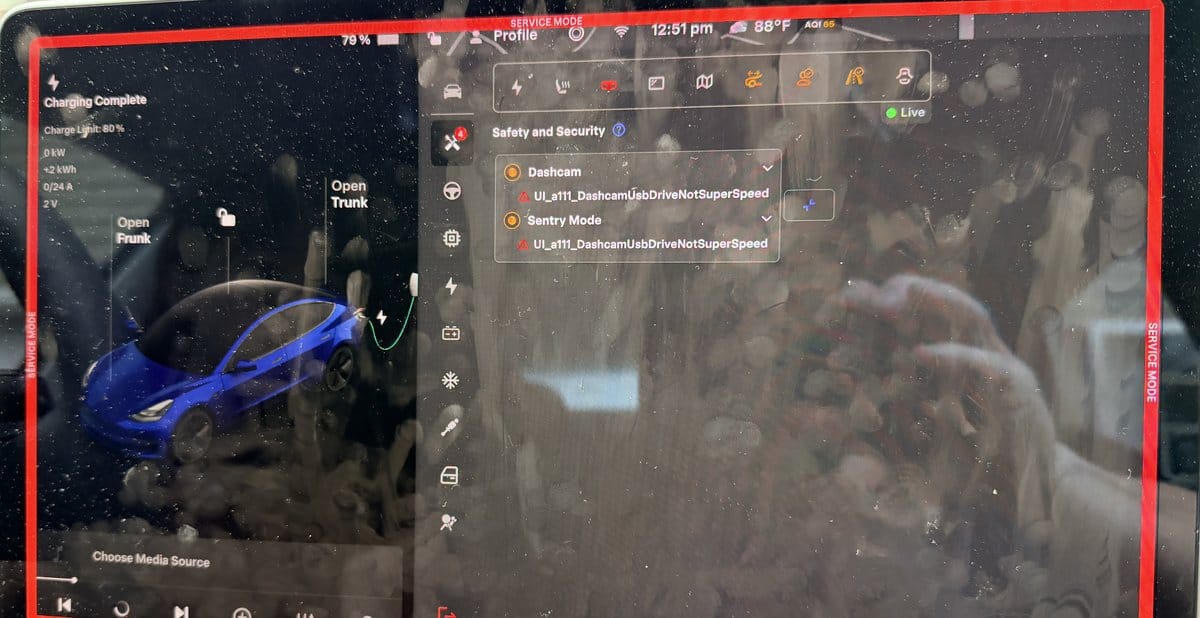
Service Mode confirming it: the same too-slow-drive alert on both Dashcam and Sentry.
Here’s the part that stings: the drive in my glovebox wasn’t junk. It was a 512 GB SanDisk thumb drive — big name, plenty of space. It just wasn’t built for the constant writing Dashcam and Sentry demand. Whatever the label promised, the car measured it too slow to rely on — exactly the failure mode this article is about.
What’s in the port now is what this guide recommends: a high-endurance microSD — mine’s a SanDisk High Endurance 128 GB — in a small USB reader. A quarter of the capacity of the drive it replaced, and I couldn’t care less. It records.
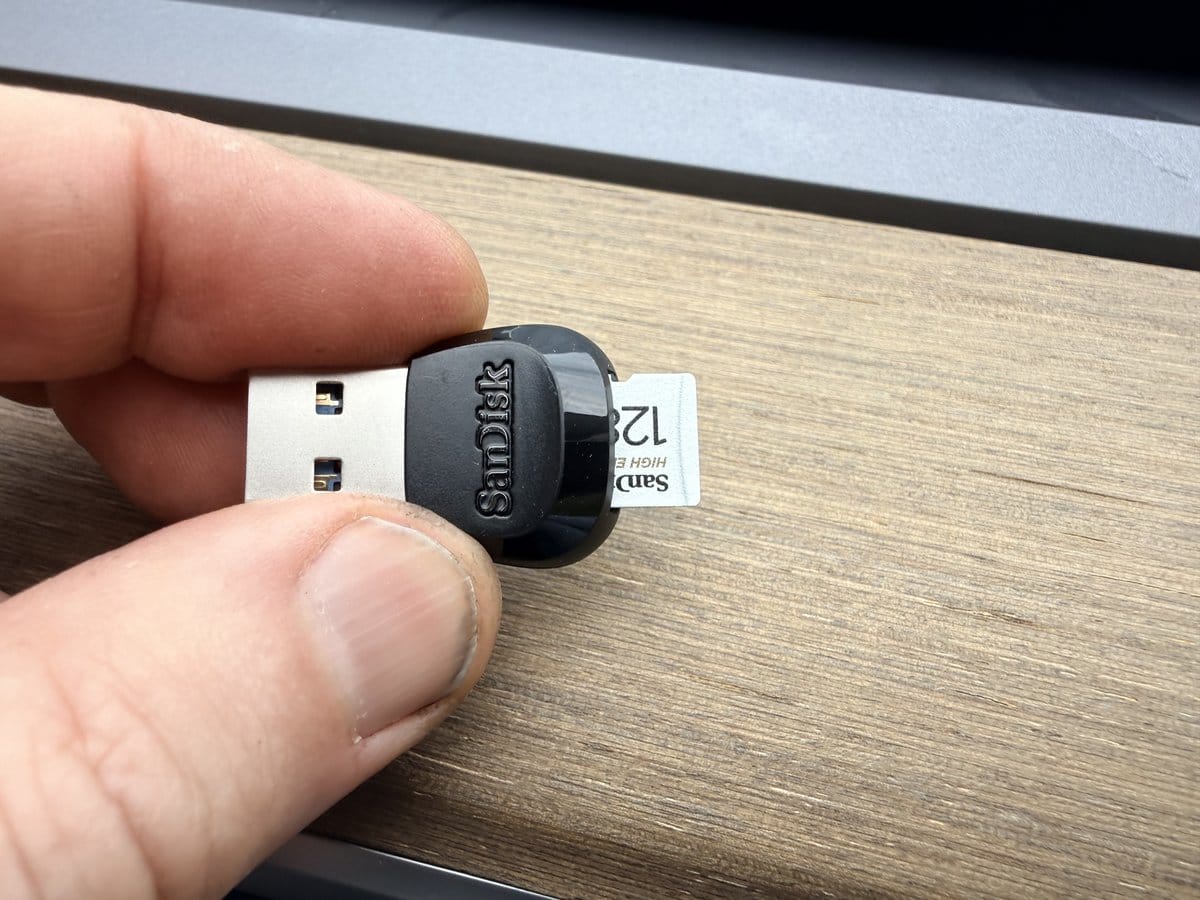
The replacement: a high-endurance microSD in a USB reader — the exact setup this guide recommends.
The repair is its own story — I ordered a replacement headlight and swapped it myself, which on a Model 3 means the front bumper comes off. The crease in the fender is still there. But the drive was the cheapest thing in this whole story, and it’s the one piece that failed me. If you’re picking storage, the full rankings are in my buyer’s guide to Sentry & Dashcam drives.
Why Your Tesla USB Drive Keeps Failing
Dashcam and Sentry Mode are brutal on storage. Unlike a drive you plug in occasionally to move photos, the Tesla writes to this drive the entire time you’re driving, and the entire time Sentry is watching, overwriting the oldest footage in a rolling loop. For a daily-driven car parked with Sentry on, that adds up to near-continuous writing — Sentry alone can write for hours every time the car sits in a busy lot. A standard flash drive is built for occasional use and a limited number of write cycles; put it under continuous recording and it wears out, overheats, or corrupts its file table. That’s what produces the classic symptoms:
- “USB drive not formatted” or “Dashcam unavailable” messages that keep coming back
- Sentry or dashcam randomly stopping and the camera icon greying out
- Missing clips — the event you wanted to save was never actually written
- The drive getting hot and dropping out on summer days
There are really only three things that matter for a drive that survives:
- Endurance. You want a card rated in hours of recording or terabytes written (TBW) — “high endurance” or “PRO Endurance” surveillance cards, not a generic thumb drive.
- Sustained write speed. Tesla’s owner’s manual calls for a sustained write speed of at least 4 MB/s (that’s sustained, not the peak number on the package). Even a U1 / V10-rated card (10 MB/s minimum) clears this comfortably; U3 / V30 cards are faster still.
- Enough capacity, correctly formatted. Tesla requires a minimum of 64 GB, formatted to exFAT (the car can format it for you). Bigger cards give the loop more room before it overwrites, which means more saved history.
Get those three right and the “keeps failing” problem disappears. Everything below meets all three.
The Tesla USB Drives That Actually Survive
I’ve stopped experimenting here — for continuous Dashcam/Sentry writing I only run storage built to survive it. These are the picks that hold up.
Best for most owners — Samsung PRO Endurance microSD + reader
An endurance-class microSD is the sweet spot for Tesla owners: cheap enough to size up, and specifically engineered for the never-ending write loop that kills normal drives. Samsung’s PRO Endurance line is rated in years of continuous recording — ~70,000 hours (8 years) for the 128GB — with a 5-year warranty. For the bigger loop, the 256GB pick below is PNY’s PRO Elite High Endurance, rated to 68,800 hours of recording with a 2-year warranty.
Samsung PRO Endurance 128GB microSD (with adapter)
Check Price on AmazonClass 10, U1 / V10 per the current listing — comfortably above Tesla's 4 MB/s requirement — and rated for ~70,000 hours of surveillance-grade recording. 128GB is plenty for Dashcam plus Sentry with room to spare. This is the one I’d hand to any owner whose drive keeps quitting.
PNY PRO Elite High Endurance 256GB microSD
Check Price on AmazonDouble the loop of the 128GB, rated to 68,800 hours of recording (U3/V30/A2). Worth it if you park in busy lots (more Sentry history before it overwrites) or just want to format-and-forget for years. Sold and shipped by Amazon.
SanDisk MobileMate USB 3.0 microSD Reader
Check Price on AmazonTiny, cheap, USB 3.0 (and USB 2.0 compatible, which is what Tesla requires). This is the piece people forget — the endurance card is only half the setup. Keep a spare card in it and you can swap in seconds if you ever want to pull footage.
A note on SanDisk High Endurance: it’s a fine card, but its main Amazon listings have been unreliable lately (no direct buy box, inflated third-party pricing). Until that clears up, the Samsung PRO Endurance above is the better buy for the same job.
Want the full shopping breakdown — budget picks, capacity math, and every storage option side by side? See our complete guide to the best USB drive for Tesla Sentry Mode and dashcam. This page is about the drives that survive; that one is the full buyer’s guide.
Best if you want maximum capacity — Crucial X9 portable SSD
If you’d rather run a solid-state drive — no card, no reader, huge capacity, and SSDs shrug off continuous writes — the Crucial X9 is the bulletproof pick. A 1TB SSD gives you a massive Sentry buffer and near-zero risk of the drive being the weak link.
Crucial X9 1TB Portable SSD
Check Price on AmazonPocket-sized, fast, and far more write-tolerant than any flash drive. Plugs straight into the USB port with a short cable. The trade-off is price and a dangling drive in the glovebox versus a flush microSD-in-reader — but if you never want to think about storage again, this is it.
I run an SSD myself — a Samsung T7 I bought back when it sold for a good bit less than it does today. It’s been a reliable, set-and-forget setup — the opposite of the cheap drives that kept quitting. At the T7’s current price, though, I’d buy the X9 instead: same job, considerably less money.
Comparison: Which Tesla Sentry Drive Should You Buy?
| Drive | Type | Why it survives | Best for | Price tier |
|---|---|---|---|---|
| Samsung PRO Endurance 128GB + reader | Endurance microSD | ~70K-hr (8-yr) rating, U1/V10 | Most owners — best value fix | $ |
| PNY PRO Elite High Endurance 256GB + reader | Endurance microSD | ~68.8K-hr rating, bigger loop | Busy-lot parking, more history | $$ |
| Crucial X9 1TB | Portable SSD | SSD shrugs off constant writes | Max capacity, set-and-forget | $$$ |
How to Set It Up So It Stops Failing
Once you have an endurance drive, the setup is quick and fixes most recurring errors:
- Let the car format it. Plug the drive in, then go to Controls → Safety → Dashcam (wording varies by firmware) and use the car’s Format USB Drive option. Tesla formats to exFAT and creates the TeslaCam folder for you — this alone resolves most “not formatted” loops.
- Use the correct port. Use the port designated for Dashcam storage (in the glovebox on many Model 3/Y, or the front console USB — check your car; the glovebox port is the common choice because it’s more secure for Sentry footage).
- Confirm the camera icon is solid. A grey or missing dashcam icon means it’s not recording — reformat or reseat the drive. And while you’re checking, it’s worth keeping the cameras themselves clean so the footage is actually usable when you need it.
- Re-format every few months. Even a good card benefits from an occasional reformat to clear a fragmented file table before it causes a dropout.
Frequently Asked Questions
Why does my Tesla USB drive keep failing?
Because Dashcam and Sentry Mode write to it continuously, around the clock, in an overwriting loop. Ordinary flash drives aren’t built for that constant writing and wear out, overheat, or corrupt — producing “not formatted” errors, dropouts, and missing clips. An endurance-rated card (or an SSD) is built for exactly this duty and solves it.
What kind of USB drive does Tesla actually require?
At minimum: 64GB capacity, formatted to exFAT (the car can do this), a sustained write speed of at least 4 MB/s, and USB 2.0 compatibility. Beyond the minimum, you want endurance — a “high endurance” or “PRO Endurance” surveillance-grade card, or a portable SSD.
Is a microSD card or a portable SSD better for Sentry Mode?
Both work. An endurance microSD (in a USB reader) is cheaper and flush in the port — the best value for most owners. A portable SSD like the Crucial X9 gives far more capacity and even better write tolerance, at a higher price and with a drive dangling from the port. If your drive keeps failing and you want it fixed for good on a budget, start with the endurance microSD.
How big should the drive be?
Tesla’s minimum is 64GB, but bigger is better because it gives the recording loop more room before it overwrites older footage. 128GB is a comfortable sweet spot for Dashcam plus Sentry; 256GB or a 1TB SSD if you park in busy areas and want a longer saved history.
Does Sentry Mode matter more on some cars than others?
The footage is worth the most on a car you can’t always keep an eye on — which is exactly why it’s a priority on a new driver’s first Tesla (see our guide to the best used Model 3 as a teen’s first car). A dependable drive is also one of the unglamorous essentials worth having from day one — it belongs on any Model Y accessories or first Tesla accessories list, right alongside floor mats and a phone mount.
Will reformatting the drive stop the errors?
Often, yes — reformatting clears a corrupted or fragmented file table and is the first thing to try when you see “USB drive not formatted.” But if a cheap drive keeps needing reformats, the drive itself is worn out; move to an endurance card and the problem goes away.
Our Honest Verdict
If your Tesla USB drive keeps failing, stop buying another cheap flash drive, because that is what keeps putting you back in the same spot. For nearly everyone, the fix is a Samsung PRO Endurance microSD in a small USB reader, which is inexpensive and built for this kind of around-the-clock writing. Step up to the 256GB if you park in busy lots and want more saved history. If you would rather run solid state and not think about it again, the Crucial X9 1TB SSD is the one to buy once. It is what I would buy today, and it does the same job my own Samsung T7 SSD has handled reliably. Whatever you pick, let the car format it and confirm the dashcam icon is solid.